Creator CRM in Notion: Track Sponsors, Assets, Deliverables
A clean, reliable Creator CRM in Notion lets you see every sponsor, contact, deliverable, invoice, and file in one place—so nothing slips and no payment gets “forgotten.” This guide gives you a practical data model (7 small databases), the exact relations/rollups/formulas, daily/weekly routines, and copy-ready templates. Build it once; ship stress-free deals all year.
Table of Contents
- Who This CRM Is For
- What You’ll Be Able to Do (Outcomes)
- The Data Model: 7 Lightweight Databases
- Relations & Rollups That Do the Magic
- Step-by-Step Build (≈45 Minutes)
- Everyday Views You’ll Actually Use
- Copy-Paste Notion Formulas
- Operations: Daily & Weekly Rituals
- Optional Automations (Email, Files, Payments)
- Deal & Deliverable Templates (Reusable)
- Light Legal & Finance Hygiene
- Tips for Beginners
- Advanced Tactics (Teams & Scale)
- Common Mistakes & Fixes
- FAQ
- What to Do Next
Who This CRM Is For
- Solo creators who negotiate, produce, and invoice on their own.
- Small teams that need clarity on who owns what and what’s due when.
- Brands/Agencies collaborating with creators and tracking deliverables at scale.
What You’ll Be Able to Do (Outcomes)
- See all deals by stage: Lead → Negotiating → Contract → In-Production → Delivered → Invoiced → Paid.
- Know exactly which deliverables are due this week and what’s blocking them.
- Keep brand assets (logos, briefs, coupon codes, tracking links) attached to the right deliverables.
- Send and track invoices with due dates and “Overdue” highlights.
- Run a 10-minute morning scan that prevents missed deadlines.
The Data Model: 7 Lightweight Databases
Small beats fancy. Create seven simple databases; name fields exactly so you’ll use them daily.
1) Sponsors
- Name (Title) — brand name.
- Contacts (Relation → Contacts) — people you talk to.
- Deals (Relation → Deals) — all campaigns with this sponsor.
- Category (Select) — SaaS, Hardware, Finance, Education…
- Notes (Rich text) — context, history, preferences.
2) Contacts
- Name (Title) • Email (Email) • Role (Select: BD, PR, Legal, Finance)
- Company (Relation → Sponsors)
- Last Touch (Date) • Next Touch (Date)
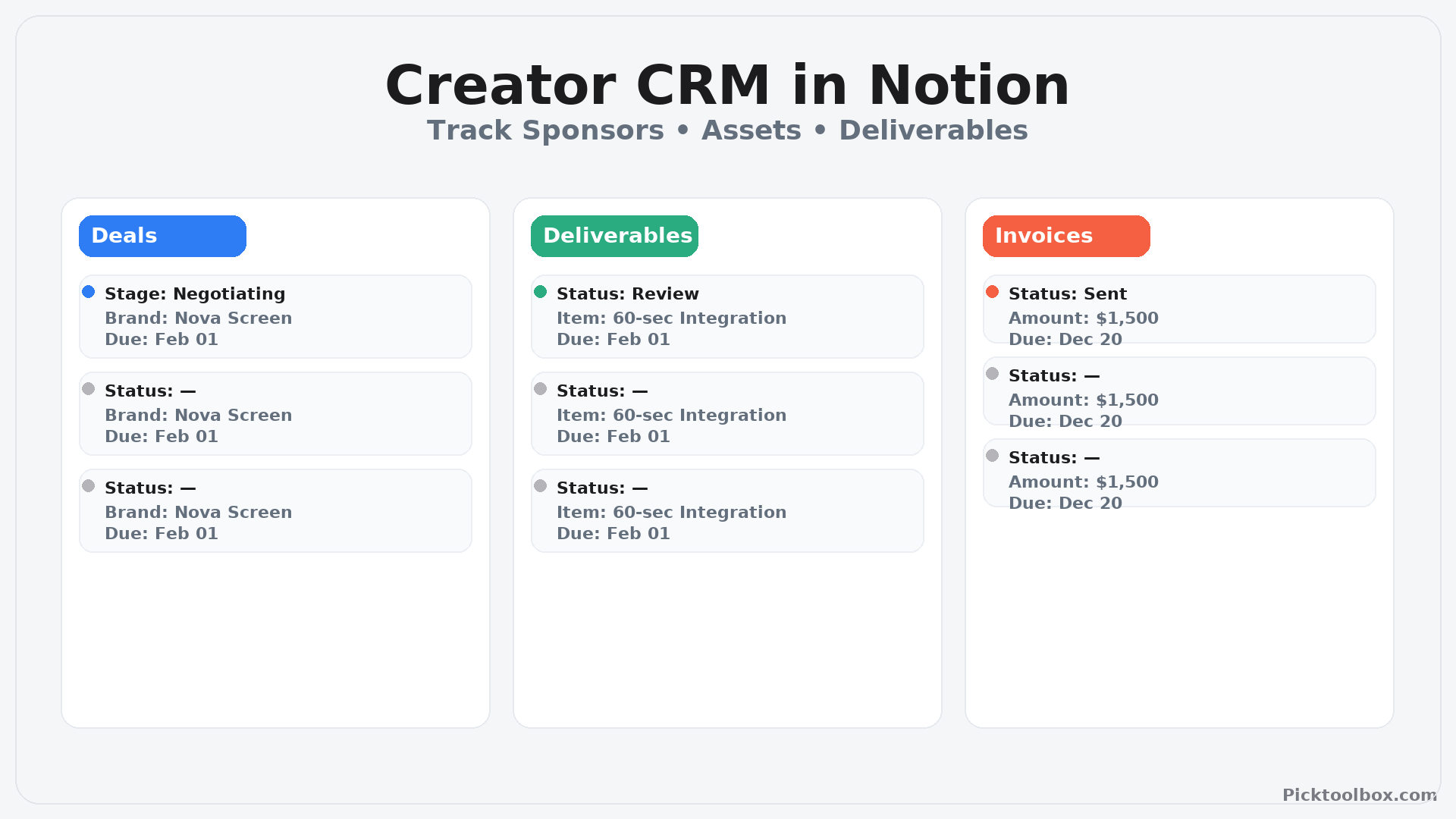
3) Deals (Pipeline)
- Deal (Title) — Brand • Campaign • Month.
- Sponsor (Relation → Sponsors)
- Stage (Select) — Lead, Negotiating, Contract, In-Production, Delivered, Invoiced, Paid, Lost.
- Value (Number, $) • Start / Due (Date)
- Deliverables (Relation → Deliverables)
- Invoice (Relation → Invoices)
- Priority (Select)
4) Deliverables
- Item (Title) — e.g., “60-sec YouTube integration.”
- Deal (Relation → Deals)
- Type (Select) — YT Video, Short, Post, Story, Blog.
- Status (Select) — Brief, Script, Recording, Edit, Review, Approved, Published.
- Due (Date) • URL (URL) • Approval Needed (Checkbox)
- Assets (Relation → Assets)
5) Assets
- Asset (Title) — Logo, Brand Guide, Coupon, Tracking Link, Music Track…
- Type (Select) • File/Link (Files/URL)
- Deliverable (Relation → Deliverables)
- License/Expiry (Text/Date)
6) Invoices
- Invoice # (Title) • Deal (Relation → Deals)
- Amount ($) • Issued (Date) • Net (Select: 7, 15, 30, 45)
- Due (Formula) • Status (Select: Draft, Sent, Overdue, Paid)
- Receipt (Files)
7) Tasks
- Task (Title) • Deliverable (Relation → Deliverables)
- Owner (Person) • Status (Select: Todo, Doing, Review, Done)
- Due (Date) • Effort (Number, hours)
Relations & Rollups That Do the Magic
- Sponsors → Deals: see pipeline per brand.
- Deals → Deliverables: progress (count shipped vs total).
- Deliverables → Assets: keep logos/coupons attached to the right item.
- Deals → Invoices: total billed, status (Paid/Overdue).
- Deliverables → Tasks: open tasks count to estimate remaining effort.
Step-by-Step Build (≈45 Minutes)
- Create the 7 DBs above as inline databases.
- Add relations exactly as listed, then create rollups:
- Deals → Deliverables → Rollup: Count (All) and Count (Status = Approved).
- Deals → Invoices → Rollup: Sum (Amount) and Latest Status.
- Deliverables → Tasks → Rollup: Count (Status ≠ Done).
- Color-code stages and statuses for fast scanning.
- New Deal template: pre-create 2–3 deliverables + a task checklist + a draft invoice.
- Smoke test: run a fake deal from outreach → paid; fix missing fields.
Everyday Views You’ll Actually Use
- Deals • Kanban by Stage — your live sales pipeline.
- Deliverables • Calendar — publishing/approval dates in one place.
- Deliverables • My Week — filter: Status ≠ Approved AND Due ≤ next 7 days.
- Invoices • Aging — sort by Due; show Overdue up top.
- Sponsors • Directory — last touch / next touch for relationship hygiene.
- Assets • Library — thumbnails for quick brand kit access.
Copy-Paste Notion Formulas
Invoice • Due Date
dateAdd(prop("Issued"), toNumber(prop("Net")), "days")
Invoice • Status (Overdue if not Paid)
if(prop("Status") = "Paid", "Paid", if(now() > prop("Due"), "Overdue", prop("Status")))
Deal • % Deliverables Complete
- Make a rollup Done Count (Deliverables where Status = “Approved”) and Total Count. Then:
round(100 * toNumber(prop("Done Count")) / max(1, toNumber(prop("Total Count"))))
Deliverable • Overdue Flag
if(empty(prop("Due")), "", if(prop("Status") = "Approved", "", if(now() > prop("Due"), "Overdue", "")))
Operations: Daily & Weekly Rituals
- Daily (10 min): open Deliverables • My Week, drag 1–3 tasks to “Doing,” send 1 sponsor update if anything slipped.
- Twice weekly (15 min): move Deals to the correct stage; adjust $ Value and Due dates.
- Publish day (20 min): attach final URL to Deliverable; mark Invoice → Sent.
- Fridays (15 min): Invoices • Aging → ping Overdue; set “Next Touch” on the contact.
- Monthly “breathe” week: schedule/repurpose only; refill buffer for next month.
Optional Automations (Email, Files, Payments)
- Review request: when a Deliverable enters “Review,” auto-email the preview link to the sponsor contact.
- Asset intake: a form that drops files into Assets and links them to a Deliverable.
- Invoice nudges: if Status = Sent and Due < today, create a pre-filled reminder task.
Deal & Deliverable Templates (Reusable)
Deal Template (starter checklist)
- ☐ Send media kit • ☐ Receive brand assets • ☐ Confirm deliverables & dates
- ☐ Draft script • ☐ Share preview • ☐ Final publish link attached
- ☐ Invoice issued • ☐ Payment confirmed • ☐ Close deal → “Paid”
Deliverable Template
- Type: YT Video / Short / Post / Story / Blog
- Status flow: Brief → Script → Recording → Edit → Review → Approved → Published
- Fields: Due, URL, Approval Needed, Assets (Relation)
Light Legal & Finance Hygiene
- Scope / Usage: define formats, platforms, exclusivity, usage window.
- Timeline: milestones (script, preview, publish), revision rounds.
- Payment: amount, currency, Net 30 (or your standard), late fees.
- Deliverables accepted: payment triggers when sponsor approves or after a defined window.
Tips for Beginners
- Start with 3 DBs: Sponsors, Deals, Deliverables. Add Invoices/Assets/Tasks when you feel the pain.
- Use short statuses; long lists won’t be maintained.
- Rename consistently: Brand – Campaign – Month for deals; Format – Title – Due for deliverables.
Advanced Tactics (Teams & Scale)
- Owner field on Tasks; weekly 15-min stand-up with “stage changes only.”
- Dashboards: one page with Deals by Stage, My Week, Overdue Invoices, and Recent Assets.
- Quarterly cleanup: archive closed deals; export paid invoices; refresh templates.
Common Mistakes & Fixes
- Too many fields: if you never fill it, delete it.
- Approvals via DMs: keep previews and comments on the Deliverable page.
- No invoice follow-up: use the Aging view + Friday nudge ritual.
Creator CRM In Notion (starter kit)
Download link
6-Minute Quick Setup (Drop-in Section)
- Import the CSVs into Notion.
Go to Import → CSV and import each file as its own database: Sponsors, Contacts, Deals, Deliverables, Assets, Invoices, Tasks. - Create Relations exactly like this:
- Deals → Sponsors (Sponsor)
- Deals → Deliverables (Deliverables)
- Deals → Invoices (Invoice)
- Deliverables → Deals (Deal)
- Assets → Deliverables (Deliverable)
- Invoices → Deals (Deal)
- Add three Rollups you’ll use daily:
- Deals: Deliverables → Count and Done Count (Status = Approved)
- Deals: Invoices → Sum(Amount) and Latest Status
- Deliverables: Tasks → Count(Status ≠ Done)
- Build everyday Views:
- Deals • Kanban by Stage (Lead → Negotiating → Contract → In-Production → Delivered → Invoiced → Paid)
- Deliverables • Calendar (on Due/Publish date; filter Status ≠ Approved)
- Invoices • Aging (filter Paid? = false; sort by Due ascending)
- Paste these formulas (cheatsheet in downloads):
dateAdd(prop("Issued"), toNumber(prop("Net")), "days")(Invoice Due)
if(prop("Status") = "Paid", "Paid", if(now() > prop("Due"), "Overdue", prop("Status")))(Payment Status)
round(100 * toNumber(prop("Done Count")) / max(1, toNumber(prop("Total Count"))))(Deal % Complete)
if(empty(prop("Due")), "", if(prop("Status") = "Approved", "", if(now() > prop("Due"), "Overdue", "")))(Deliverable Overdue) - Create a “New Deal” template with a checklist:
Send media kit → Collect brand assets → Confirm deliverables & dates → Draft script → Preview link → Publish & attach URL → Issue invoice → Confirm payment. Then run a quick fake deal end-to-end to smoke-test.
FAQ
Do I need all seven databases from day one?
No. Start simple (Sponsors, Deals, Deliverables). Add the rest when you need them.
How do I keep assets organized?
Always upload or link files into the Assets DB and relate them to the Deliverable they belong to.
Can I track affiliates vs. flat-fee sponsors?
Yes—add Deal Type (Select) and a payout note. Pipeline remains identical.
Does this replace email?
No—this replaces memory. Keep email for comms; log outcomes and links in the CRM.
What to Do Next
- Create the 7 DBs and add the exact relations.
- Build the Deals Kanban and Deliverables Calendar.
- Paste the formulas, then run one fake deal end-to-end to test.