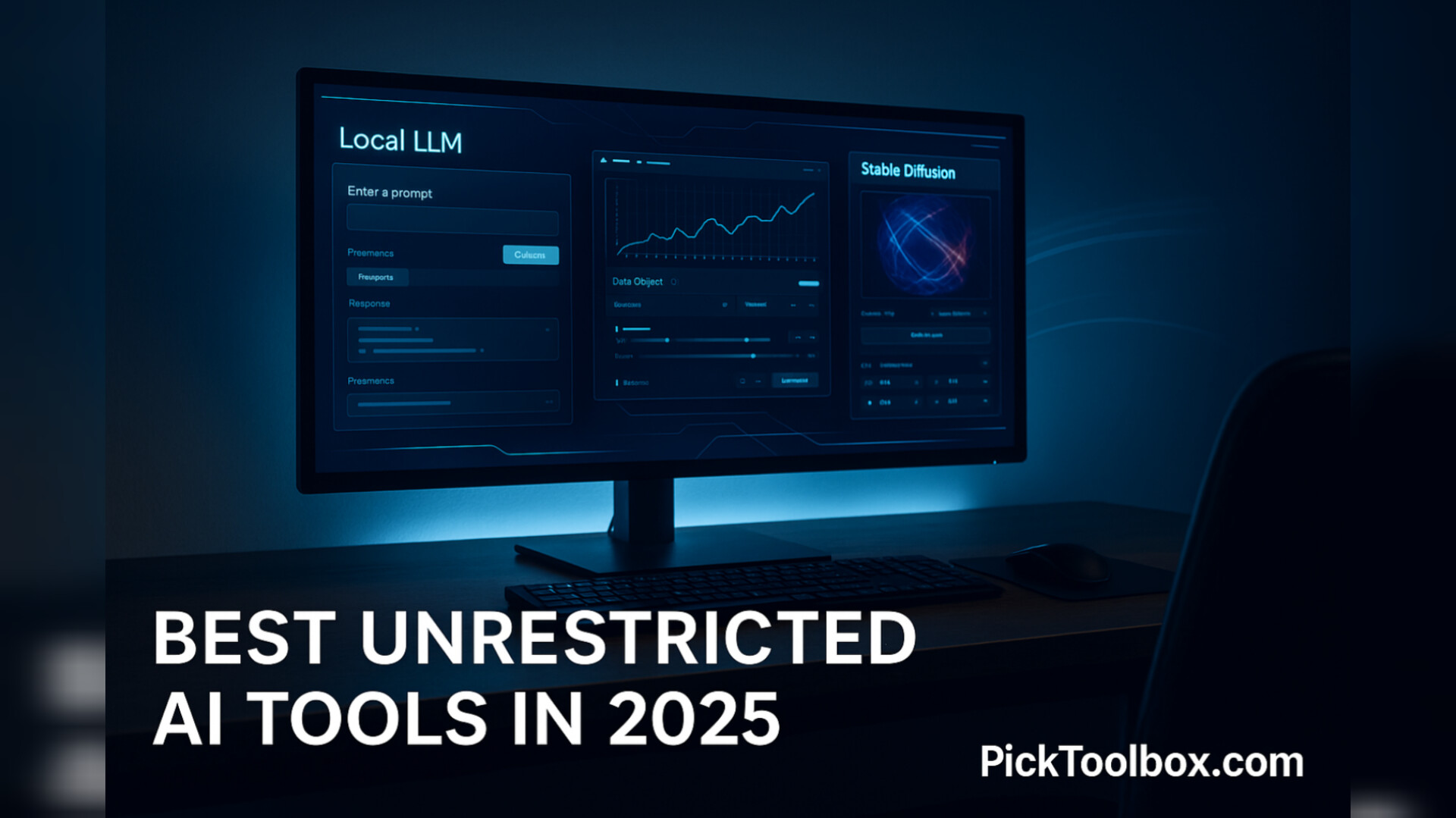
Best unrestricted AI tools in 2025 running on a creator’s desktop workspaceIf you’re searching for the best unrestricted AI tools in 2025 because you’re tired of hitting safety filters, rate limits, and vague “I can’t help with that” messages, you’re not alone. The best unrestricted AI tools in 2025 are the ones that give you more control, more privacy, and fewer artificial roadblocks — without pushing you into anything illegal or unsafe.
In this guide, we’ll break down what “unrestricted” really means, which tools give you the most freedom, how to use them ethically, and step-by-step workflows you can plug into your existing content pipeline for YouTube, social media, and client projects.
Table of Contents
- What Do “Unrestricted AI Tools” Actually Mean in 2025?
- Why Creators Are Looking for Less-Restricted AI Tools
- Types of Unrestricted AI Tools (Text, Image, Local, API)
- Best Unrestricted AI Tools in 2025 (By Category)
- How to Choose the Right Unrestricted AI Tool
- Real-World Workflows Using Unrestricted AI Tools
- Common Mistakes and Risks to Avoid
- Quick Checklist Before Using Any Unrestricted AI Tool
- Watch the Workflow Video
- FAQ
What Do “Unrestricted AI Tools” Actually Mean in 2025?
“Unrestricted” can sound dangerous or shady, but in practice it usually means one of these three things:
- Fewer content filters: The model doesn’t block harmless but sensitive topics as aggressively as big mainstream platforms.
- More control over the model: You can run it locally or self-host it, change settings, and decide what’s allowed in your own workflow.
- Fewer usage limits: Higher quotas, no daily cap, or the ability to run as much as your own hardware can handle.
That doesn’t mean “anything goes” is a good idea. You’re still responsible for staying legal, avoiding harmful content, and respecting platform policies. The goal here isn’t to help you break rules — it’s to help you work efficiently without pointless friction.
Why Creators Are Looking for Less-Restricted AI Tools
In late 2024 and 2025, more and more creators started noticing that big AI platforms were tightening their limits: fewer free generations, stricter content filters, and more “policy” blocks on perfectly normal use cases. At the same time, competition and GPU costs pushed many tools to reduce free tiers and encourage paid plans.
For serious creators, this creates a real problem:
- You need reliable tools for daily work, not just occasional experiments.
- You can’t afford to hit a wall in the middle of a client project because a model suddenly decides your request is “sensitive”.
- You may want private, local tools that don’t send data to third-party servers at all.
That’s where the best unrestricted AI tools in 2025 come in: local models, open-source stacks, and privacy-focused APIs that give you more control over how you work.
If you already rely on AI for planning YouTube videos and editing workflows in tools like Premiere Pro and After Effects, these unrestricted options can become a powerful backbone for your entire system — while you still keep your main editing techniques inside your usual Premiere Pro & video editing tutorials and After Effects tools & templates.
Types of Unrestricted AI Tools (Text, Image, Local, API)
Not every “unrestricted” tool works the same way. It helps to think in categories so you don’t get overwhelmed by random names and model numbers.
- Local LLMs (text & chat): Models you run on your own machine using apps like LM Studio or Ollama. You download a model file once and use it offline.
- Local image generators: Tools like Stable Diffusion and custom checkpoints that run on your GPU or rented servers, often with minimal filters.
- Privacy-focused APIs: Cloud platforms that prioritise privacy, let you choose open-source models, and don’t add aggressive content filters beyond what’s required legally.
- “No-limit” assistants: Chatbots or writers built around uncensored or lightly filtered models, marketed specifically as “no restrictions” or “uncensored”.
Each group has different pros and cons for creators, so we’ll break down the best options in each category.
Best Unrestricted AI Tools in 2025 (By Category)
This is not a list of tools for doing anything illegal or harmful. It’s a practical roundup of tools creators actually use to work faster, with fewer random block messages and more control over their data.
Category 1: Local Uncensored LLMs for Text & Chat
Local LLMs are the backbone of most “unrestricted” workflows. You download a model once, load it in a desktop app, and then chat or generate text privately. No cloud logging, no external filters on top of the model itself.
- Dolphin-style uncensored LLaMA variants
Community-tuned models based on LLaMA families that are less filter-heavy and designed for creative experimentation. They’re popular for brainstorming, scripting, and character writing when you don’t want random refusal messages. - Nous Hermes–style uncensored models
These tend to be more capable at reasoning and long-form text, again with lighter content filters. Great for long blog outlines, system design notes, and creator playbooks. - General “uncensored” LLMs on Ollama / LM Studio
If you use a desktop front-end like LM Studio or a CLI/front-end like Ollama, you can load several uncensored models and swap between them depending on the task (copywriting, coding, idea generation, etc.).
When to use: You need consistent responses, you want privacy, and you’re okay with installing software and downloading multi-gigabyte model files.
Category 2: Local & Semi-Unrestricted Image Generators
Image generators are where “unrestricted” gets the most attention, because many people want to push style boundaries. For creators focused on thumbnails, key visuals, and B-roll frames, though, the goal is usually just more control and fewer random “refused” prompts.
- Stable Diffusion with custom checkpoints
Still the workhorse of open image generation. You can run it locally, on a rented GPU server, or through web UIs. With the right checkpoint and prompt discipline, you can generate on-brand graphics, concept art, and props for your videos without fighting heavy filters. - ComfyUI / other node-based pipelines
Creators who need repeatable styles often build visual graphs in ComfyUI or similar tools. You configure your prompt, model, sampler, upscaler, and output size once, then reuse the same graph for entire campaigns. - Hosted “no-restrictions” image generators
A growing number of small platforms offer “no content restrictions” for images. Always read their terms carefully, and keep your own usage within legal and platform-safe boundaries — but they can be useful if you don’t want to manage your own GPU.
When to use: You want full stylistic control for thumbnails, title cards, or concept frames, and you’re willing to invest a bit of time in learning a workflow like Stable Diffusion.
Category 3: Privacy-Focused AI Platforms with Fewer Limits
Not everyone wants to manage local models. Privacy-first cloud platforms aim to give you strong models, sensible filters, and more generous limits, while still respecting user control and data separation.
- Private inference APIs based on open-source models
These platforms let you pick a specific open-source model (for example, a LLaMA or Mistral variant), run it in their cloud, and pay by usage. They often limit only obviously illegal or abusive use, leaving normal creative workflows untouched. - Multi-modal private providers
Some newer platforms combine text, images, and code under a single private account. You can store your prompt presets, fine-tunes, and workflows without sending data to third-party analytics ecosystems.
When to use: You want the freedom of open models without having to own a GPU or manage servers yourself.
Category 4: “No-Limit” Assistants & Writer Tools
Finally, there are tools advertised explicitly as “no restrictions”, “uncensored”, or “no limits”. These typically wrap an uncensored model in a chat-style UI and may also connect to image generators.
- Unrestricted chat-style assistants
These tools promise minimal content blocking and more “honest” answers. They can be useful for brainstorming edgy marketing ideas, narrative writing, or exploring alternative perspectives — as long as you stay within legal and ethical boundaries. - Hybrid writer + image generators
Some platforms combine free-form chat, long-form writing, and integrated image generation under one roof, with softer safety rails than mainstream providers. They’re good as one-stop creative sandboxes for solo creators.
Important: Just because a tool says “uncensored” doesn’t mean everything you can do with it is legal or safe. You’re still fully responsible for how you use it.
How to Choose the Right Unrestricted AI Tool
Instead of asking “What’s the most uncensored tool?”, ask “Which tool gives me enough freedom for my real work without creating unnecessary risk?” Here’s a simple framework.
Step 1 – Clarify Your Use Case
- Are you writing scripts, blog posts, or emails?
- Are you generating thumbnails, concept art, or product scenes?
- Do you need everything to run locally for privacy reasons?
- Are you building an AI-assisted content system for YouTube, short-form, or client work?
Step 2 – Decide Where You Need “Less Restriction”
- You’re tired of safe, generic marketing copy → local or uncensored text LLM.
- You keep hitting weird content blocks when generating images → local image generator with clear settings.
- You’re hitting rate limits and usage caps → local or pay-as-you-go hosting.
Step 3 – Balance Freedom with Responsibility
- Check the tool’s terms of service and allowed use cases.
- Avoid tools that actively encourage illegal or abusive content.
- Plan how you’ll store and protect any sensitive data you run through the model.
If you’re building a full pipeline around these tools, it can help to document everything in a simple internal “AI stack” doc and keep it alongside your other Productivity & AI tools so you always know what’s running where.
Real-World Workflows Using Unrestricted AI Tools
To make this practical, here are a few workflows you can plug into your own content creation system. All of them assume legal, ethical use — we’re focusing on speed, quality, and control, not hacking or abuse.
Workflow 1 – AI-Accelerated YouTube Video Production
- Step 1 – Script drafting with a local LLM
Use a local uncensored LLM to brainstorm hooks, compare different angles, and write a rough script. Because you’re running it locally, you can be more honest about metrics, client constraints, and behind-the-scenes details without sending them to the cloud. - Step 2 – Visual ideas with a local image generator
Use Stable Diffusion or a similar tool to generate concept frames for thumbnails and B-roll. You can refine style and colour grading to match your channel look. - Step 3 – Edit in your usual NLE
Bring everything into Premiere Pro or your editing tool of choice, combine real footage with AI-generated assets, and apply your normal transitions, overlays, and templates.
Workflow 2 – Client Concept Videos Without a Full Shoot
- Step 1 – Creative brief into local LLM
Paste the client brief into a local model and ask it to propose 3–5 video concepts, including locations, pacing, and visual style. - Step 2 – Generate visual mood boards
Use your image generator to create mock frames for each concept. These don’t need to be perfect — they just need to communicate mood and structure. - Step 3 – Build a mini animatic
Drop the frames into your editor, add rough timing and music, and send the client a concept video. Once they approve, you can decide which parts will be AI-generated and which will be real footage.
Workflow 3 – Blog + Social Content Automation
- Step 1 – Use a local LLM for outlines
Generate article outlines, tweet threads, and LinkedIn post structures offline. Fine-tune the tone to your brand without hitting style filters. - Step 2 – Generate matching visuals
Use your image generator to create simple but unique visuals for each post: supporting graphics, diagrams, or stylised mock-ups. - Step 3 – Schedule content in your usual tools
Upload everything into your scheduler or CMS, keeping a clear separation between AI-generated assets and any user data you handle.
Common Mistakes and Risks to Avoid
Unrestricted AI tools are powerful, but they also amplify your responsibility. Here are the main traps to avoid.
Mistake 1 – Treating “Unrestricted” as “Anything Goes”
Just because a model will attempt to answer a question doesn’t mean it’s legal, ethical, or safe to ask. Always stay away from:
- Malware, hacking, or exploit instructions
- Harassment, hate content, or targeted abuse
- Violations of platform policies where you publish your content
Mistake 2 – Ignoring Data Privacy
If you run an uncensored LLM in the cloud, your prompts might still be logged. For anything sensitive — contracts, unreleased scripts, or private analytics — prefer local-only models or providers with strong privacy guarantees.
Mistake 3 – Building Your Entire Business on a Fragile Tool
Small “no-limit” platforms can appear overnight and disappear just as quickly. Use them as part of a stack, not the single point of failure. Make sure your core workflows can fall back to local tools or bigger platforms if one service goes down.
Mistake 4 – Publishing AI Output Without Editing
Unrestricted models will happily go off the rails if you let them. Always edit, fact-check, and rephrase content before it goes live. You’re responsible for the final result, not the model.
Quick Checklist Before Using Any Unrestricted AI Tool
Before you go all-in on a new tool, run through this quick checklist:
- Do I understand what “unrestricted” means for this specific tool?
- Is my planned use case legal and compliant with the platforms I publish on?
- Am I comfortable with where my data is stored and processed?
- Do I have a backup option if this tool goes offline?
- Am I prepared to edit and review outputs carefully before publishing?
If you can confidently answer “yes” to those questions, you’re in a much better position to benefit from the best unrestricted AI tools in 2025 without creating unnecessary risk for yourself or your brand.
Watch the Workflow Video
A written guide is useful, but seeing the full pipeline — from local model setup to image generation and final edit — can make it much easier to copy this system into your own setup.
Record or embed a short walkthrough where you show how you:
- Install or access your chosen unrestricted AI tools
- Run a real project from idea to final export
- Keep everything legal, safe, and on-brand for your audience
FAQ
Are unrestricted AI tools illegal?
No. Most unrestricted AI tools themselves are not illegal. What matters is how you use them. As long as you avoid illegal content, respect platform policies, and stay within local laws, you can safely integrate them into your creative workflow.
Do unrestricted AI tools always run locally?
Not always. Some are fully local models you run on your own hardware; others are hosted APIs with lighter restrictions. Local tools generally offer the strongest privacy, but require more setup and compute.
Can I use unrestricted AI tools for client work?
Yes, if you’re transparent about your process where necessary, respect NDAs and privacy, and keep everything legal and brand-safe. Many agencies already use local LLMs and image generators to prototype concepts and accelerate production.
Will using unrestricted tools get me banned from platforms?
It can, if you publish content that breaks their rules. Platforms don’t care which tools you used — they care about what appears on their site. Always check the rules for YouTube, TikTok, Instagram, or any client platform before posting.
What’s the safest way to start experimenting?
Start with a local text model for brainstorming and drafting, then add a local or semi-local image generator for thumbnails and concept art. Keep your experiments in private projects until you feel confident in your workflow and review process.