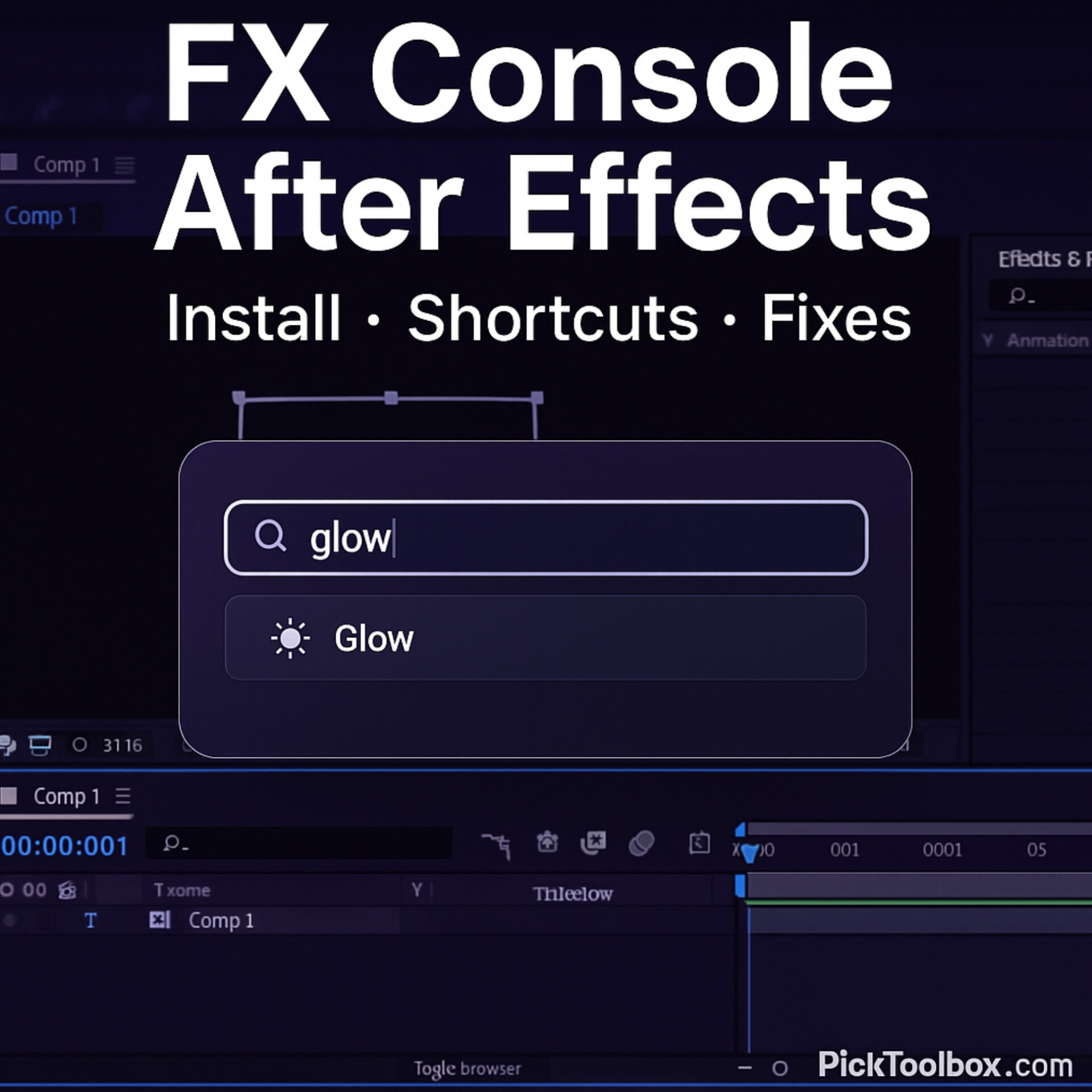
FX Console After Effects plugin search panel interfaceIf you spend a lot of time in After Effects, FX Console is one of those plugins that instantly makes you feel faster and more professional. Instead of digging through long menus to find effects, the fx console after effects workflow lets you open a search bar with a shortcut, type a few letters, and drop the right effect or preset on your layer in seconds.
In this practical guide, you’ll learn what FX Console actually does, how to download and install it, which shortcuts matter, and how to fix it when it doesn’t show up or stops working. We’ll keep everything focused on real-world motion graphics and VFX work, so you can plug this straight into your own workflow and combine it with your favorite After Effects tools & templates.
Table of Contents
- What Is FX Console in After Effects?
- Why FX Console Is a Must-Have for Power Users
- How to Download and Install FX Console (Windows & Mac)
- How to Use FX Console: Core Workflow
- Advanced Tips & Time-Saving Tricks
- FX Console Not Working? Common Problems & Fixes
- Quick Checklist for a Smooth FX Console Workflow
- Watch the Workflow Video
- FAQ
What Is FX Console in After Effects?
FX Console is a free plugin for Adobe After Effects that adds a powerful “command palette” to your workspace. Instead of scrolling through the Effects & Presets panel, you hit a keyboard shortcut, type a few characters, and FX Console finds the right effect, preset, or utility for you.
Think of it as a turbo-charged search bar for effects. It can:
- Search and apply any effect or preset in your After Effects installation
- Save and reuse your favorite effects as quick presets
- Create snapshots of your composition to compare before/after looks
- Help you clean up your effect stack more efficiently
For anyone who works with heavy compositions, transitions, or motion design elements (like the ones you might use from your favorite Premiere Pro & video editing or design & motion graphics resources), FX Console becomes a core part of the toolkit very quickly.
Why FX Console Is a Must-Have for Power Users
You don’t need FX Console to use After Effects, but once you get used to it, going back feels painfully slow. Here’s why so many editors and motion designers swear by it:
- Speed: Instead of hunting through nested menus, you press one shortcut and type the effect name.
- Focus: You keep your eyes on the comp window and timeline, not on the side panels.
- Consistency: You can create repeatable workflows and presets for your most common looks.
- Less mouse, more keyboard: Over long days, that reduces fatigue and makes you feel more “in control” of the software.
If you’re already using workflow helpers like custom workspaces, keyboard shortcuts, or template packs, adding the fx console after effects plugin is one of the highest-impact tweaks you can make.
How to Download and Install FX Console (Windows & Mac)
Installation is usually straightforward, but it helps to understand what’s happening behind the scenes so you can fix issues if the plugin doesn’t show up.
Before You Install
- Make sure you’re running a reasonably recent version of After Effects (CC or later).
- Quit After Effects completely before copying any plugin files.
- Know where your After Effects Plug-ins and ScriptUI Panels folders are located.
Installation on Windows
- Step 1 – Download the FX Console installer.
Download the plugin package from the official source. You’ll usually get a ZIP file containing the plugin and support files. - Step 2 – Extract the ZIP.
Right-click the ZIP file and choose Extract. You should see a folder with plugin files and potentially a setup or readme file. - Step 3 – Copy the plugin files.
Inside the extracted folder, look for the main plugin file (for example, FXConsole.aex) and any related folders. Copy them to your After Effects Plug-ins directory, typically something like:
C:\Program Files\Adobe\Adobe After Effects <version>\Support Files\Plug-ins - Step 4 – Copy any ScriptUI files.
If the package also includes a ScriptUI panel, copy it into:
C:\Program Files\Adobe\Adobe After Effects <version>\Support Files\Scripts\ScriptUI Panels - Step 5 – Restart After Effects.
Launch After Effects again. FX Console should now be available.
Installation on macOS
- Step 1 – Download and unzip.
Download the plugin ZIP and double-click it to extract the contents. - Step 2 – Locate your Plug-ins folder.
Typically it’s inside:
Applications/Adobe After Effects <version>/Plug-ins - Step 3 – Drag the plugin files.
Move the main plugin file and any needed folders into the Plug-ins directory. - Step 4 – Add ScriptUI panel (if required).
If there’s a ScriptUI component, place it in:
Applications/Adobe After Effects <version>/Scripts/ScriptUI Panels - Step 5 – Relaunch After Effects.
Quit and reopen After Effects so it can load the new plugin.
Enabling the Plugin Inside After Effects
- Step 1 – Open the FX Console panel.
From the menu bar, go to Window and look for FX Console in the list. Click it to open the panel. - Step 2 – Dock it somewhere convenient.
Drag the FX Console panel to dock it near your Project or Timeline panels so it’s easy to access and configure. - Step 3 – Confirm the default shortcut.
By default, FX Console often assigns Ctrl + Space (Windows) or Cmd + Space (Mac) as its activation shortcut. You can change this later in the panel settings if you have conflicts.
How to Use FX Console: Core Workflow
Once installed, FX Console becomes part of your everyday After Effects workflow. Here’s how to use it effectively from day one.
Opening FX Console
- Method 1 – Keyboard shortcut.
Select a layer in your timeline, then press the FX Console shortcut (for example, Ctrl/Cmd + Space). A search bar pops up in the center of your comp. - Method 2 – Click the panel icon.
If the panel is visible, you can click inside it to trigger the search interface, but most users rely on the shortcut.
Searching and Applying Effects
- Step 1 – Start typing the effect name.
For example, type glow, curves, or tint. - Step 2 – Use arrow keys to choose.
FX Console shows matching effects and presets. Use the arrow keys or mouse to select the one you want. - Step 3 – Press Enter.
The chosen effect is immediately applied to your selected layer.
This alone can save you a shocking amount of time compared to manually clicking through the Effects & Presets list, especially if you work heavily with transitions, titles, or elements from your intro templates and transitions collections.
Creating and Using Presets
- Step 1 – Build your look.
Apply several effects to a layer and tweak settings until you like the look. - Step 2 – Save as preset in FX Console.
From the FX Console panel, save the current effect stack as a custom preset with a name you’ll remember. - Step 3 – Apply later with search.
Next time you need that same look, open FX Console, type the preset name, and apply it in one click.
Snapshots and Before/After Comparisons
- Snapshot creation.
Use the snapshot button in the FX Console panel to capture a still frame of your current comp view. - Compare versions.
After making changes, compare the new look to your snapshot. This is great for color grading, compositing, and complex motion graphics sequences.
Advanced Tips & Time-Saving Tricks
Once you’re comfortable with the basics, these tweaks make FX Console even more powerful inside your fx console after effects workflow.
Customizing the Activation Shortcut
- Open the FX Console panel settings (gear icon).
- Change the activation hotkey if it conflicts with other system shortcuts.
- Pick something that’s easy to hit with your left hand while your right hand is on the mouse or pen.
Organizing Favorite Effects
- Mark your most-used effects (like Curves, Glow, Drop Shadow) as favorites.
- Use consistent naming so you can type the first few letters and hit Enter.
- Build presets for common tasks like “Text Pop”, “Fade In”, or “HUD Glow” and store them under short names.
Using Snapshots for Client Feedback
- Save snapshots for different looks (for example, Warm Grade, Cool Grade, Flat).
- Capture them and export stills to share with clients for quick approval before you commit to a full render.
Combining FX Console with Templates
- Load a base template from your favorite lower thirds packs or openers.
- Use FX Console to swap out and experiment with different effects stacks on duplicated comps.
- Save the winning look as a preset so your future projects start faster.
FX Console Not Working? Common Problems & Fixes
Sometimes FX Console doesn’t show up in the menu, the shortcut stops working, or the search bar refuses to appear. Here’s how to diagnose and fix the most common issues.
Problem 1 – FX Console Not Showing in the Window Menu
- Check the installation path.
Make sure the plugin file is actually inside the correct Plug-ins folder for the version of After Effects you’re running. - Multiple AE versions.
If you have several versions of After Effects installed, verify you copied the plugin into the one you’re currently using. - Restart After Effects.
After copying plugin files, After Effects must be fully restarted to load them.
Problem 2 – Shortcut Does Nothing
- Shortcut conflict.
Your OS or another app might be using the same shortcut (for example, Spotlight on macOS with Cmd + Space). Change the FX Console hotkey in its settings to something unique. - Layer not selected.
FX Console usually expects a layer to be selected in the timeline. Click on a layer and try again. - Panel not initialized.
Make sure the FX Console panel has been opened at least once from the Window menu so it can initialize properly.
Problem 3 – Effects Don’t Apply to the Right Layer
- Check which layer is selected.
If multiple layers are highlighted, the effect may land on all of them or on the one that has focus. - Precomps vs base layers.
Be aware of whether you’re applying effects to a precomp layer or a nested layer inside it.
Problem 4 – FX Console Slows Down Your Project
- Too many heavy presets.
Complex presets with many resource-intensive effects can slow down previews. Use them only where necessary. - Old version of AE.
Very old versions of After Effects may struggle with newer plugin builds. Updating AE often improves performance. - Try disabling temporarily.
If you suspect a conflict, temporarily remove the plugin from the Plug-ins folder and restart AE to see if performance improves.
Quick Checklist for a Smooth FX Console Workflow
- Is FX Console correctly installed in your current After Effects version?
- Does the activation shortcut work without conflicting with OS or other apps?
- Have you opened the FX Console panel at least once from the Window menu?
- Do you have a small set of favorite effects and presets saved for fast access?
- Are you using snapshots to compare grades and styles before committing?
- Have you tested the plugin on a fresh project to rule out project-specific issues?
If you can answer “yes” to most of these, your fx console after effects setup is in good shape, and you’ll feel the speed difference in everyday motion design work.
Watch the Workflow Video
FX Console is easiest to understand when you see it in action. A short screen recording that shows you installing the plugin, assigning a shortcut, and using it on a real client project will make the concepts in this article “click” much faster.
In your video tutorial, consider walking through:
- Installing FX Console and opening the panel
- Assigning and testing your custom shortcut
- Searching for and applying effects on a title animation
- Saving a preset for your favorite glow or color grade
- Using snapshots to compare two different looks
FAQ – FX Console After Effects
Is FX Console free to use in After Effects?
Yes, FX Console is available as a free plugin for After Effects. You can install it on multiple machines as long as you follow the plugin’s licensing terms and use it with a legitimate copy of After Effects.
Which versions of After Effects support FX Console?
FX Console is designed for modern versions of After Effects (Creative Cloud). Very old CS-era versions may not be supported. If you run into issues, updating to a more recent CC version usually solves them.
Can I customize the FX Console shortcut?
Absolutely. Open the FX Console panel, find the settings or hotkey section, and assign any available key combination that doesn’t conflict with your OS or other apps. Many users prefer a simple one-hand shortcut for speed.
Does FX Console work with third-party effects?
Yes. FX Console can search across both built-in and third-party effects installed in After Effects. As long as the effect or preset appears in your Effects & Presets panel, you can usually find it through FX Console.
Will FX Console break my existing projects?
No. FX Console doesn’t change how After Effects saves or renders your projects. It simply gives you a faster way to add and manage effects. If you uninstall it later, your compositions and effect stacks remain intact.